

A good MFA rollout plan does five things in order: it protects administrators first, secures how staff register, tests policies before enforcing them, brings users in through a pilot and then waves, and keeps a way back in if something goes wrong. Done in that order, multi-factor authentication (MFA, a second proof of identity on top of a password) goes live without locked-out directors or a flooded help desk. At Abersecure we build MFA into managed IT support as part of Security by Default, so it is never an optional extra bolted on later.
This guide follows the route most Aberdeen and Aberdeenshire SMEs take on Microsoft 365.
Why an MFA rollout plan matters for UK businesses
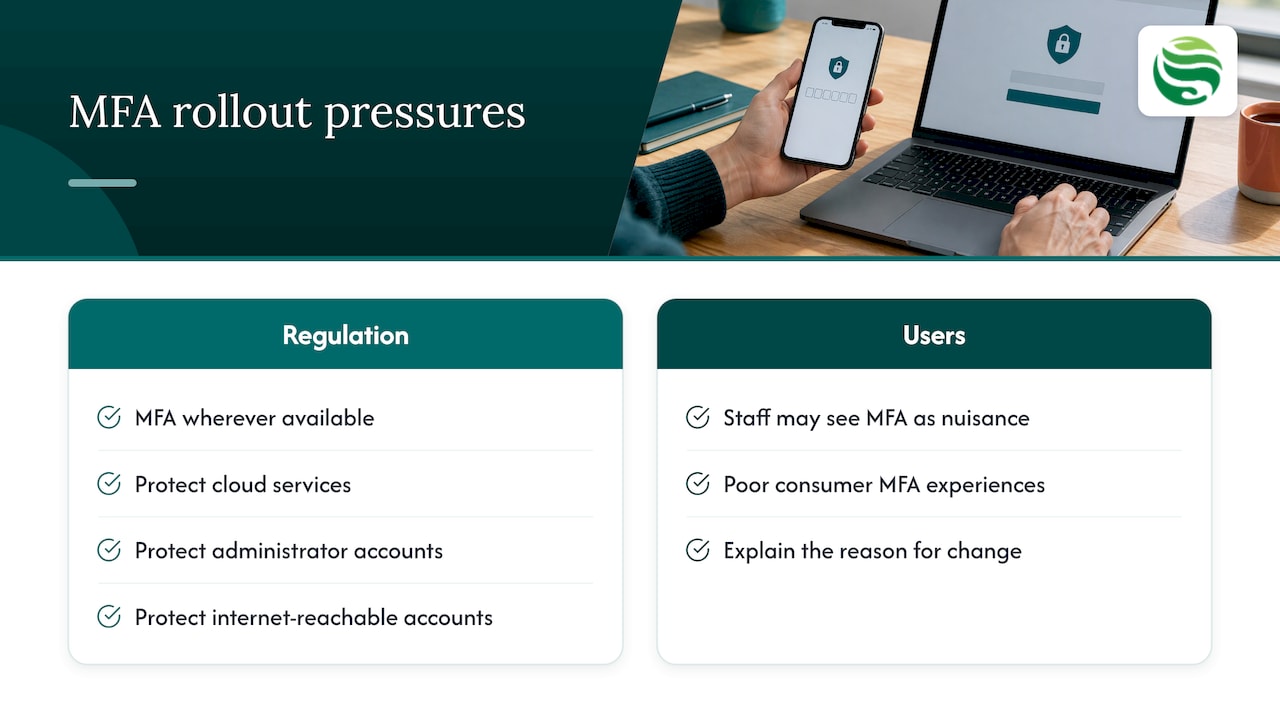
Switching MFA on for everyone on a Monday morning is the quickest way to create lockouts. A plan matters because of two pressures: users and regulation.
On the regulation side, Cyber Essentials v3.2 from the NCSC (April 2025) requires MFA wherever it is available. It must always protect cloud services, administrator accounts and any account reachable from the internet. If you sell to public sector or larger supply chains, this is often a contract condition. Our Cyber Essentials certification guide explains how the scheme works. Meeting these requirements also supports wider UK data protection duties, because protected accounts keep business and customer data safer.
On the user side, Microsoft’s own security team treats MFA as a change-management problem: staff may see it as a nuisance, and many have had poor experiences with consumer MFA. The plan has to explain the reason, not just flip a switch.
Step 1: Prepare before you enable anything
Microsoft’s deployment guidance for Entra multifactor authentication (Entra ID is the sign-in service behind Microsoft 365) lists the groundwork: prerequisites, authentication methods, Conditional Access policies (rules that decide when a sign-in needs extra proof), session lifetimes and registration policies. In practice, that means:
- Inventory accounts and apps. List every user, shared mailbox, contractor and service account, and every app that signs in with Microsoft credentials.
- Find legacy authentication. Older protocols such as IMAP, POP3 and SMTP cannot prompt for a second factor. Microsoft’s implementation blog says these must be upgraded or restricted, because they block MFA deployment.
- Create two emergency accounts. Microsoft recommends at least two emergency access admin accounts, not tied to individuals, used only in emergencies and excluded from MFA requirements. Our guide to Microsoft 365 MFA for UK admins using FIDO2 covers how to protect them with hardware keys.
- Choose your methods. See the next section.
- Harden password resets. If your help desk can disable MFA on a phone call, attackers will ask. Agree a callback and a second-person approval for administrator resets before enforcement starts.
Choosing authentication methods
Not every second factor is equal. The NCSC notes that SMS is not the most secure type but still beats no MFA, and recommends alternatives where available. Its corporate MFA guidance advises applying the strongest types you can.
A sensible split for an SME:
| Account type | Suggested method |
|---|---|
| Administrators and emergency accounts | FIDO2 security keys or other phishing-resistant methods |
| Finance, HR and senior staff | Microsoft Authenticator with number matching, or passkeys |
| General staff | Microsoft Authenticator |
| Fallback only | SMS or voice, where nothing else is possible |
When the Microsoft 365 prompts arrive, staff register one or more approved methods such as Authenticator, passkeys, Windows Hello for Business or tokens. Encourage a second registered device so a lost phone is an inconvenience, not an outage.
Step 2: Enable MFA in Microsoft 365
There are two routes, set out in Microsoft’s admin guidance:
- Security defaults. Available to every tenant on the free Entra ID tier. Turn it on in the Entra admin centre under Identity, Overview, Properties. It is the simplest option for very small teams.
- Conditional Access. With Entra ID P1 or P2 you turn security defaults off and build policies from templates: require MFA for all users, require MFA for administrators, block legacy authentication and require MFA for Azure management. Exclusions should be emergency accounts only.
Microsoft describes legacy per-user MFA as available but not recommended. Our Conditional Access guide for UK SMEs walks through policy design, and our Microsoft 365 security guide covers the wider tenant settings.
Step 3: Pilot, then roll out in waves
Microsoft’s guidance recommends a pilot followed by deployment waves sized to your support capacity, expanding only after you have reviewed the methods used and how people registered. A workable sequence:
- Administrators first. They are the highest-value targets, as Microsoft’s implementation blog advises.
- Report-only mode. Build policies in report-only so you can see who would have been blocked without blocking anyone. One UK practitioner rollout plan suggests reviewing a week or more of results.
- Pilot group. Pick a small group from different departments, including someone who travels and someone who works on a shared device.
- Waves. Add groups one at a time, checking who has not registered before each wave and contacting them directly.
- All users. Only when registration is nearly complete, apply the policy to everyone, contractors and partners included.
Registration data can lag, so allow for delays when you check the numbers.
Step 4: Communicate and support your people
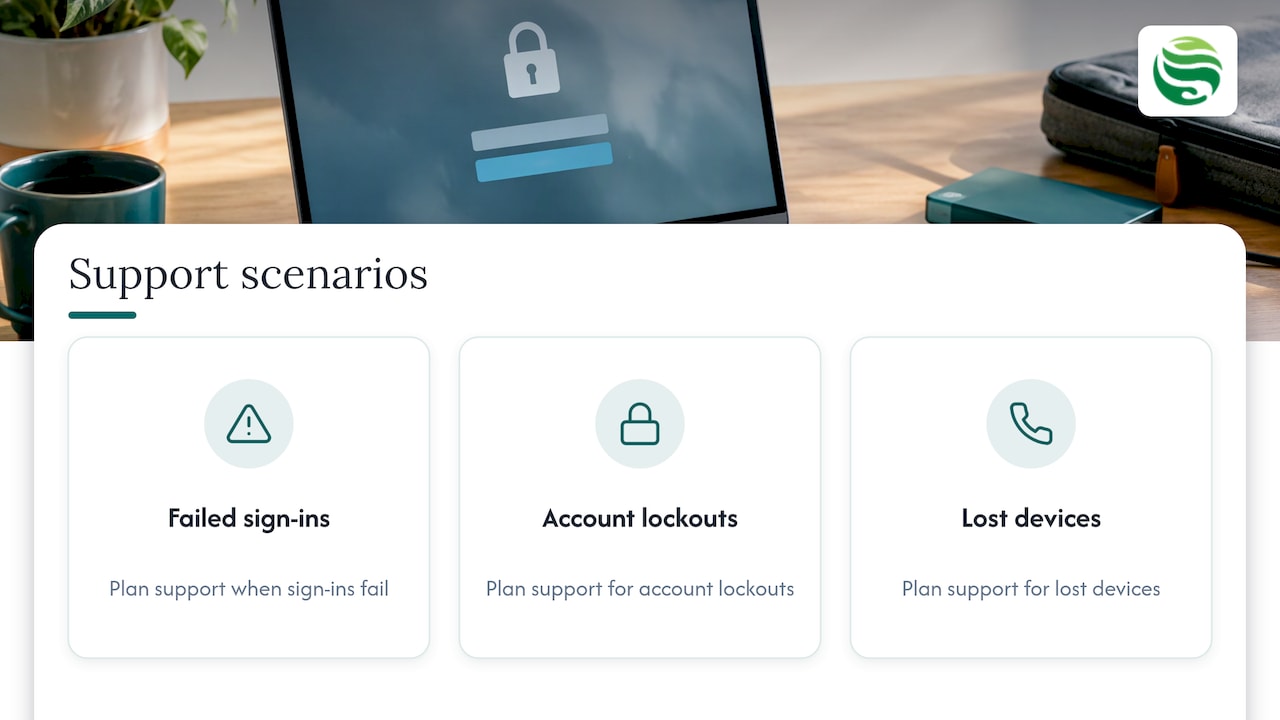
Tell staff what is changing, why, and when, using email, short instructions and a named contact. Microsoft’s blog suggests emails, posters, FAQs and training videos, and planning support for failed sign-ins, lockouts and lost devices.
Also brief people on prompt fatigue. The UK government’s Access and Authentication standard (SS-001) expects monitoring for excessive or anomalous MFA prompts, and staff should know that an approval request they did not trigger is something to report, never to accept. Pairing the rollout with security awareness training helps make that habit stick.
How Abersecure supports an MFA rollout
For Aberdeen and Aberdeenshire businesses without an in-house IT team, the rollout is exactly the kind of work our Microsoft 365 management and managed IT support cover. Our IT help desk is there for the lockouts and registration questions that follow, and Managed Cyber Security carries 24/7 endpoint monitoring with Security by Default as standard. If you only need a one-off hand with the rollout, pay-as-you-go IT support is available.
Step 5: Review and keep it working
After enforcement, check coverage regularly. A UK rollout checklist recommends a quarterly review that includes a test sign-in with the emergency accounts, so you know the way back in still works. Review new starters, leavers, new cloud apps and exceptions each time, since Cyber Essentials expects MFA on every cloud service that offers it.
FAQ
How long should an MFA rollout take for a small business?
There is no fixed figure, because Microsoft ties the wave size to your support capacity. A team of around twenty can often run a pilot and two waves over a few weeks, with notice to staff before each stage.
Can I enforce MFA in Microsoft 365 without locking anyone out?
Yes. Exclude only your emergency accounts, test in report-only mode, pilot with a small group and contact unregistered users before each wave. Keep a second registered method for every user.
Do I need Conditional Access, or are security defaults enough?
Security defaults suit very small teams and are free. If you need exclusions, targeted groups or phased waves, Conditional Access, which needs Entra ID P1 or P2, gives you that control.
Is SMS acceptable as a second factor?
The NCSC says SMS is weaker than other types but better than no MFA, and recommends alternatives where they are available. Use it as a fallback, not a default.