

Conditional access policies are if-then rules in Microsoft Entra that decide whether someone can reach your Microsoft 365 apps, and on what terms. If a user signs in from an unknown device, the rule might demand multifactor authentication (MFA); if they sign in from somewhere you never operate, it might block them outright. Microsoft describes them as combining signals to enforce organisational access policy. Done well, they are the practical mechanism behind Zero Trust for a small or medium-sized business. Done carelessly, they can lock your own administrators out. This guide covers how they work, which to start with, the licences involved and a safe rollout.
How conditional access policies make decisions
Every policy has two halves: assignments and access controls. Assignments say who and what the policy applies to: users or groups, apps, locations, devices and risk levels. Access controls say what happens next. Microsoft’s documentation describes a policy as an if-then statement of assignments and access controls.
The signals Microsoft lists include user or group membership, IP location, device, application, risk detections and Microsoft Defender for Cloud Apps. The outcome is either a block, or a grant that depends on a control being met, such as MFA or a compliant device.
Three points of logic catch people out:
- Policies stack. Microsoft states that when several policies apply, they are combined with AND logic, so every applicable policy must be satisfied.
- Block wins. Evaluation collects session details first, then enforces controls. A block stops enforcement there, followed by grant controls and then session controls.
- Scope is coarse. Microsoft’s UK Government guidance describes conditional access as coarse-grained authorisation: it grants or denies access to an application, while the application itself makes finer decisions.
Grant and session controls
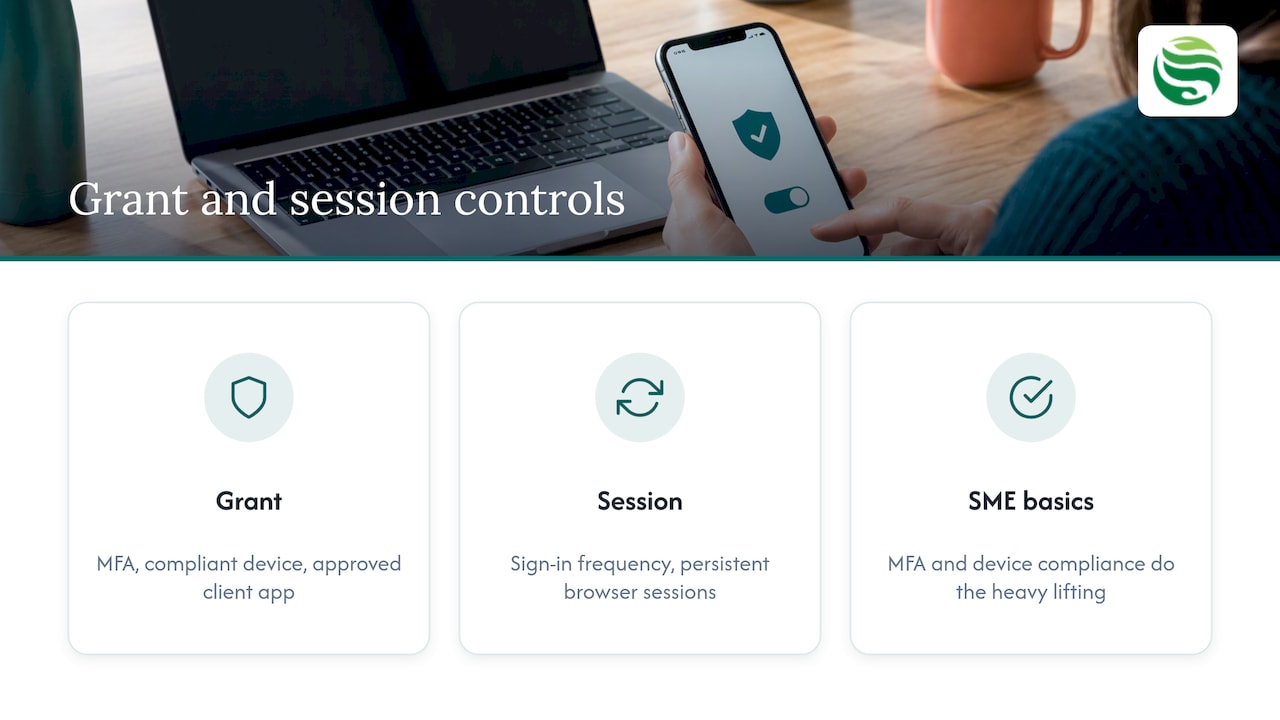
Grant controls listed by Microsoft include MFA, authentication strength, a compliant device, a hybrid-joined device, an approved client app, an app protection policy, a password change and terms of use. Session controls include app-enforced restrictions, Defender for Cloud Apps controls, sign-in frequency, persistent browser sessions and continuous access evaluation.
For most SMEs, MFA and device compliance do the heavy lifting. The rest can wait until the basics are stable.
Examples of conditional access policies to start with
You do not need dozens of policies. A small, well-understood set beats a sprawling one that nobody dares touch. Microsoft’s deployment guidance recommends beginning with core policies. These are sensible first candidates:
- Require MFA for all users. The baseline for any Microsoft 365 tenant. Our guide to Microsoft 365 MFA for UK admins using FIDO2 covers stronger methods for privileged accounts.
- Require MFA for administrators. Admin roles are the highest-value targets, so they deserve the strongest authentication strength you can support.
- Require a compliant device for Microsoft 365. Access is granted only from devices that meet your standard. This depends on device management; see our overview of Intune device management for small businesses.
- Block access from locations you never operate in. Microsoft’s block-access example shows how location can be used to deny sign-ins. Treat location as one signal, not a perimeter.
- Apply risk-based rules. Microsoft’s risk policy guidance gives examples such as requiring remediation for high user risk and stronger authentication for medium or high sign-in risk, initially in Report-only mode.
Microsoft also creates some policies for you. Microsoft-managed policies appear automatically in eligible tenants in Report-only mode and can include controls such as MFA. Check whether your tenant already has them before building duplicates.
Where to find and review them
In the Microsoft Entra admin centre, go to Entra ID, then Conditional Access, then Policies. To see what a policy would do, use Report-only mode and the Policy impact view. Microsoft notes that sign-in logs show Conditional Access results, while audit logs record policy changes. Reading both before you enforce anything is the cheapest insurance you will buy.
Which licence do you need?
Microsoft’s identity and device access guidance lists Conditional Access with Microsoft 365 E3 or E5. Risk-based capabilities need Microsoft 365 E5, Microsoft 365 E3 with the E5 Security add-on, EMS E5 or Microsoft Entra ID P2.
Licensing changes, so confirm your own plan against Microsoft’s current requirements before designing policies around a feature. If you are unsure what your tenant includes, a review of your Microsoft 365 setup is a good first step.
How to roll out conditional access policies safely
The main risk is self-inflicted: a policy that blocks everyone, including the people who could fix it. Microsoft’s deployment planning guidance specifically warns administrators to test exclusions and avoid locking themselves out. A sequence that follows that guidance:
- Set scope and exclusions. Decide who and what each policy covers. Exclude emergency (break-glass) accounts, and keep at least two.
- Register authentication methods first. If users have not enrolled for MFA, a policy that requires it will stop them working.
- Pilot with test users. Start with IT staff and a few willing colleagues.
- Run Report-only mode. Inspect Policy impact and the sign-in logs to see who would have been blocked and why.
- Communicate. Tell staff what is changing, when and who to call. Most support tickets after a rollout come from surprise, not from the policy itself.
- Enable in phases and monitor. Foundation and core authentication policies first, advanced risk-based controls later.
Document each policy: its purpose, its owner, its exclusions and the date it was last reviewed. Policies that nobody can explain tend to get switched off in a crisis, which is exactly when you need them.
Conditional access policies and Zero Trust
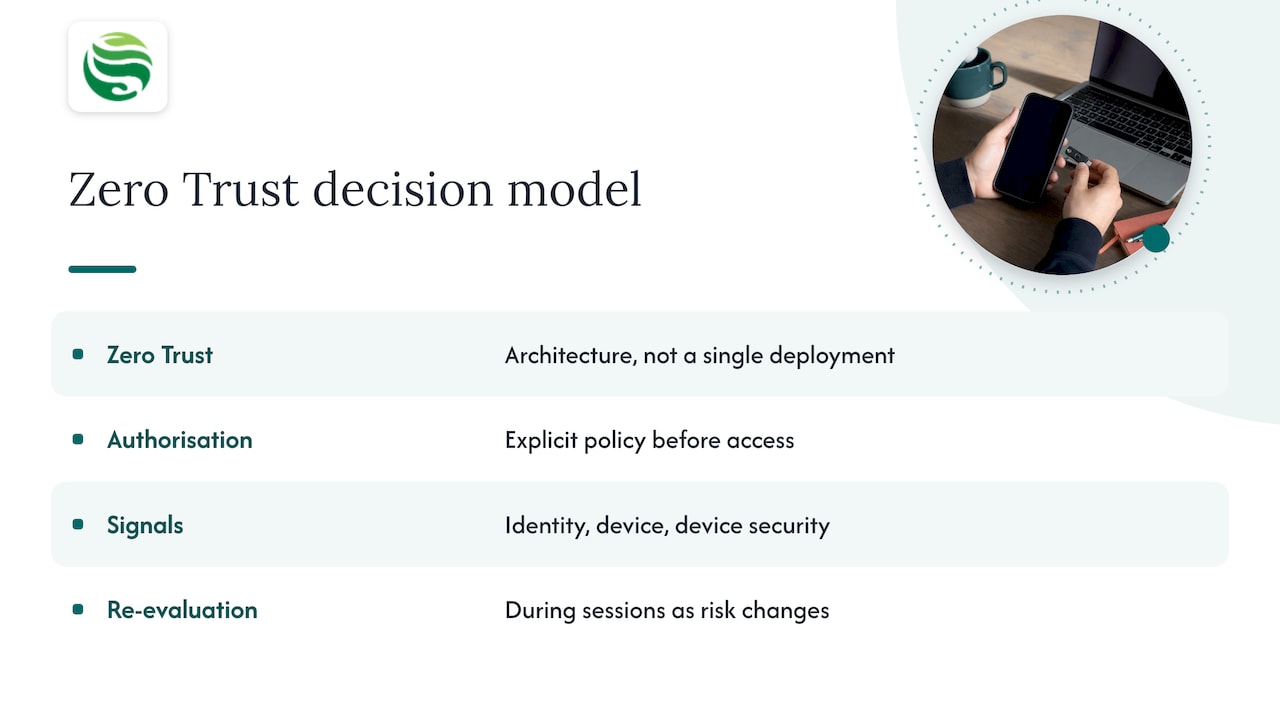
Zero Trust is often sold as a product. The UK National Cyber Security Centre takes a different view: in its Zero Trust guidance, it describes an architecture and a set of consistently enforced principles, not a single deployment. Access requires explicit policy authorisation, rather than trust based on being on the corporate network, on a VPN or in a known location.
That is why conditional access policies sit at the centre of Zero Trust in Microsoft 365. They are where the policy is written and enforced before access is granted. The NCSC also says decisions should combine several signals: who is asking, what device they are using and whether that device is secure enough. It recommends re-evaluating during a session, because behaviour, device posture and risk can change after sign-in.
Zero Trust versus a perimeter, in practice
A perimeter model asks “are you inside the office network?” A Zero Trust model asks “is this person, on this device, at this level of risk, allowed into this app right now?” For an SME with staff working from home, on mobiles and across cloud apps, the second question is the only one that still makes sense.
A realistic Zero Trust roadmap for a smaller firm is modest:
- Get identity under control: MFA for everyone, emergency accounts documented.
- Bring devices under management so “compliant device” means something. Our notes on mobile device management for UK SMEs and a written device management policy help here.
- Add risk-based controls once you have the licences and a stable baseline.
- Review sign-in logs regularly and adjust.
This mirrors Microsoft’s phased guidance: foundation first, advanced controls later, always tested in Report-only mode before enforcement.
Getting conditional access policies set up properly
We provide managed IT support and managed cyber security for businesses in Aberdeen and Aberdeenshire, working to a Security by Default approach in which security is built into support rather than bolted on. That includes Microsoft 365 management, where identity and access settings belong. If you would like a second pair of eyes on your tenant before you enforce anything, get in touch with us.
FAQ
What licence do I need for conditional access policies?
Microsoft’s guidance lists Conditional Access with Microsoft 365 E3 or E5. Risk-based features need Microsoft 365 E5, E3 with the E5 Security add-on, EMS E5 or Microsoft Entra ID P2. Check Microsoft’s current licensing page for your plan before you build around a feature.
Where do I find conditional access policies?
Sign in to the Microsoft Entra admin centre, open Entra ID, then Conditional Access, then Policies. You can create, edit and review policies there, and use Policy impact or Report-only mode to see their effect before enforcement.
What happens when more than one policy applies to a sign-in?
All applicable policies must be satisfied, because Microsoft combines them with AND logic. A block always stops access, so a single broad block policy can override several permissive ones.
Is conditional access the same as Zero Trust?
No. The NCSC treats Zero Trust as an architecture and set of principles. Conditional access policies are one of the main tools that enforce those principles in Microsoft 365, alongside device management and monitoring.