
Microsoft 365 Backup provides fast, native point-in-time recovery for Exchange, SharePoint and OneDrive but is not a complete independent off-site backup for all Microsoft 365 workloads. If your business depends on Teams, Planner or Power Platform data, or needs long-term retention for compliance, treat native backup as one layer rather than the whole strategy. Our recommended first step: check your workload coverage this week and run a restore test, or arrange a managed backup health check.
What Microsoft 365 Backup covers and how the native architecture works
Microsoft’s native Microsoft 365 Backup protects three core workloads: Exchange Online, SharePoint Online and OneDrive for Business. These are the services most businesses rely on daily for email, file storage and collaboration, and Microsoft has built point-in-time recovery directly into the platform for each of them, according to Microsoft 365 Backup.
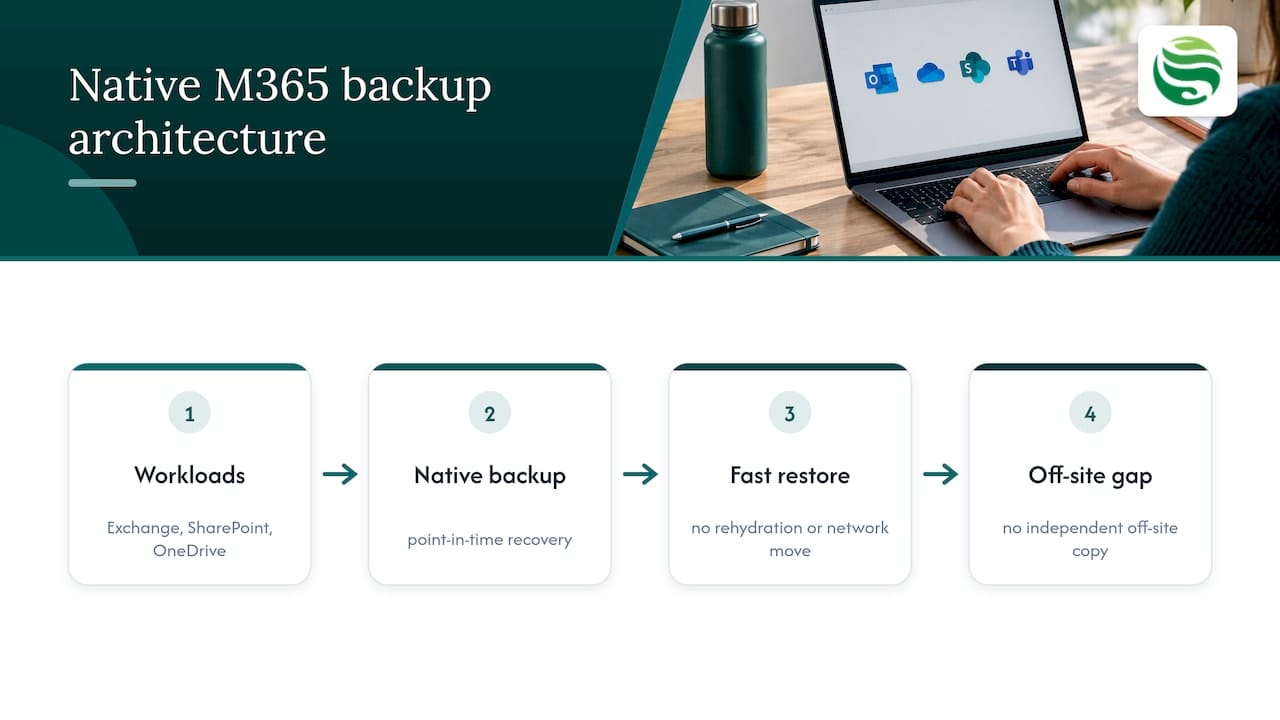
Because backups sit inside Microsoft’s own infrastructure rather than being copied to a separate environment, restores can happen quickly. There is no need to move data across networks or rehydrate it from a third-party store before recovery begins. Microsoft documentation describes express restore points as part of this design, letting administrators roll data back to a specific moment without waiting for a lengthy extraction process, as outlined on the Microsoft 365 Backup product page.
This matters most when the problem is accidental: a user deletes the wrong folder, a script overwrites a SharePoint library, or a mailbox needs rolling back after a migration error. In those cases, native backup tends to be efficient, and organisations that stay tightly within the Microsoft ecosystem and prioritise rapid bulk recovery often find it a practical fit.
What native backup does not give you is a copy of your data stored independently of Microsoft’s own infrastructure. For organisations that need a genuinely separate off-site archive, perhaps for audit purposes or to satisfy a cyber insurance requirement, that distinction becomes significant. We’ll return to that question in the sections on security principles and pricing below.
Common gaps and blind spots to plan for
Coverage gaps catch out even experienced IT teams, largely because the services involved feel like they should be included. Microsoft’s own documentation confirms that several widely used workloads sit outside native backup’s scope, as detailed by Microsoft 365 Backup.
- Teams chats and channel messages are not backed up, despite being a primary communication record for many businesses.
- Planner boards and tasks fall outside native coverage, which matters for teams using them to track project delivery.
- Power Platform artefacts, including Power Apps and Power Automate flows, are not included.
- Microsoft Lists data sits in the same unsupported category.
It is also worth separating native backup from the recycle bin and version history features built into SharePoint and OneDrive. Those tools help with quick, short-term recovery of recently changed or deleted files, but they are not designed as durable, long-term backup: retention windows are limited and recovery options narrow once that window closes.
The practical consequence shows up in three scenarios: a tenant-wide compromise where you need to roll back further than native retention allows, a legal or regulatory requirement for multi-year retention, and any need to export data independently of Microsoft’s platform. In each case, native backup alone leaves a gap that needs addressing separately.
Security and ransomware-resistant backup principles you must require
Backup security is not an afterthought bolted onto a storage decision. It is the mechanism that determines whether your backups survive the exact event you built them for. NCSC guidance on ransomware-resistant cloud backups sets out principles that should shape how any Microsoft 365 backup configuration is assessed:
- Backups must be resilient to destructive actions, so a compromised account cannot simply delete them.
- The service must prevent denial of customer access, meaning an attacker cannot lock you out of your own recovery points.
- Restore from prior versions must be reliable, not just theoretically available.
- Key management needs to be robust, with encryption keys protected independently of day-to-day admin access.
- Privileged changes to backup configuration must trigger alerts, so unauthorised changes do not go unnoticed.
Translating these into practice means separating backup administration from general IT admin accounts, enforcing multi-factor authentication that is not tied to the same device used for daily email, and considering privileged access workstations or a privileged access management tool for anyone who can alter backup settings. Related NCSC guidance on mitigating ransomware attacks reinforces this: offline copies, multiple storage locations and regular restore testing all reduce the blast radius of an attack.
Monitoring and alerting close the loop. Alerts for privileged changes, failed backup jobs or unusual deletion patterns should feed directly into your incident response process, not sit unread in a dashboard.
Pro Tip: Review who holds backup admin rights every quarter: role changes and leavers are the most common cause of unnecessary access.
Cost model and pricing considerations for Microsoft 365 Backup
Microsoft prices Microsoft 365 Backup as a pay-as-you-go consumption service, billed per gigabyte of data protected, as confirmed on the Microsoft 365 Backup page. Your monthly spend depends on total data volume, how long you retain backups, and how much your data changes between backup cycles, since higher churn means more storage consumed over time.
As an illustrative example only: say your organisation holds 500 gigabytes across Exchange, SharePoint and OneDrive, with moderate daily change. Your monthly cost scales with that volume and with how long you choose to retain historical versions, rather than being fixed per user. This differs from how many third-party backup tools price their service, which is typically per user per month regardless of data volume.
The trade-off is predictability. Per-user pricing is easier to forecast as your headcount changes; per-gigabyte pricing can be more economical for data-light organisations but less predictable where data volumes grow quickly. Factor in your retention requirements and expected data growth before comparing the two models directly, and check whether export options are included or charged separately.
How to choose: decision criteria and questions to ask
Choosing between native backup, a hybrid approach or a fully managed service comes down to a handful of practical questions rather than a single right answer.
Start with your recovery requirements. What is your acceptable recovery time objective (how quickly you need data back) and recovery point objective (how much data loss is tolerable)? Map these against which workloads are genuinely business-critical, since Teams chats or Planner boards may matter more to your operations than the native tool assumes.
- Confirm exactly which workloads a solution covers and which are excluded.
- Ask whether backups are immutable and how retention periods are configured and enforced.
- Check that backup administration is separated from general admin accounts, with its own alerting.
- Clarify export formats and whether you can extract data independently if you change provider.
- Review service level terms for restore speed, not just backup frequency.
Red flags worth avoiding include vague language around “included workloads”, contracts that do not specify restore time commitments, and any setup where the same credentials control both production systems and backup configuration. The ICO’s guidance on business continuity management is clear that organisations should not rely solely on provider-internal mechanisms for critical backups, and should be able to restore personal data within a reasonable timeframe regardless of which tool sits behind that promise.
Operational playbook: restore testing, retention planning and runbooks
A backup you have never tested is an assumption, not a safeguard. Building restore testing into your operational calendar is what separates a working backup regime from one that only looks adequate on paper.
- Run a monthly spot check: restore a handful of sample files, one mailbox and one SharePoint site to confirm basic recoverability.
- Conduct a full restore drill quarterly, covering a realistic volume of data and timing how long recovery actually takes.
- Map retention policies against legal and business requirements, using tiered retention: short-term daily snapshots, medium-term weekly or monthly versions, and longer-term archives for anything under legal hold.
- Review that retention map annually so it keeps pace with changing regulatory or contractual obligations.
- Assign clear ownership for backup health monitoring and ensure alerts route to whoever handles incident response.
NCSC guidance confirms that regular restore testing is one of the core controls organisations should apply to ransomware resilience, alongside offline copies and secured backup administration, according to the NCSC’s guidance on mitigating malware and ransomware attacks.
When you do test a restore, verify more than file presence: check that permissions and access controls have restored correctly, and run a malware scan before reconnecting recovered data to production systems. Skipping that step risks reintroducing the exact problem you were recovering from.
Comparison of leading third-party Microsoft 365 backup solutions with feature highlights
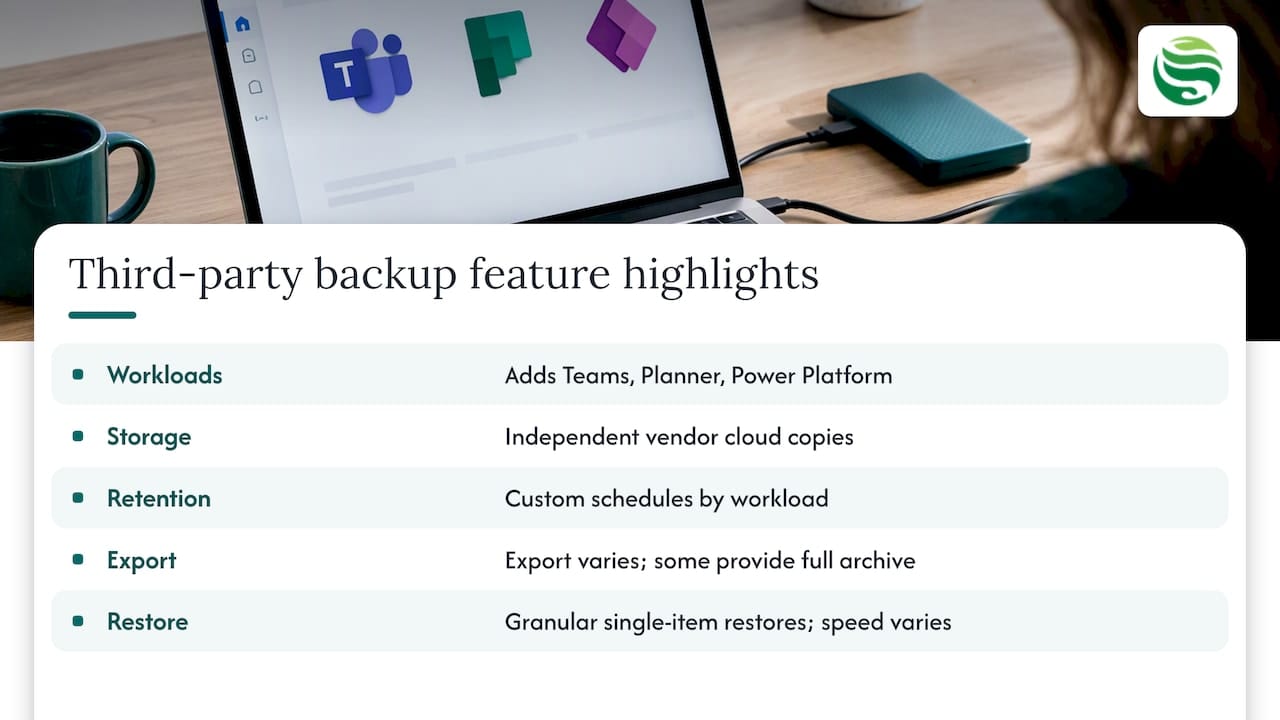
Third-party Microsoft 365 backup tools generally aim to close the gaps native backup leaves open: broader workload coverage, independent off-site storage, and more granular retention controls. Most support Teams chats and channels, which native backup does not, and many extend coverage to Planner and parts of the Power Platform as well.
Feature differences tend to cluster around a few areas. Storage location is one: some tools store copies in their own cloud infrastructure entirely separate from Microsoft’s, which satisfies the independent-copy principle that the ICO’s guidance on ransomware and data protection compliance points to when assessing backup resilience, as set out in the ICO’s guidance on ransomware and data protection compliance. Retention flexibility is another: third-party tools often allow custom retention schedules by workload or data type, rather than a single policy applied broadly.
Export capability is worth checking closely. Some solutions make it straightforward to extract your full backup archive if you switch providers; others make this harder, effectively locking your historical data into their platform. Granular restore, the ability to recover a single email, file or Teams message rather than restoring an entire mailbox or site, is increasingly standard but still varies in speed and precision between tools.
Pricing structures differ too, typically landing on a per-user-per-month model rather than Microsoft’s per-gigabyte approach, which can make budgeting more predictable for organisations with growing data volumes. The right choice depends on which of these factors matters most for your specific compliance and operational requirements, rather than any single tool being universally superior.
Step-by-step guide to restoring data from backups for each workload
Restoring from Microsoft 365 Backup follows a broadly similar pattern across workloads, with some differences in scope and precision.
For Exchange Online, administrators select a point-in-time restore for an individual mailbox, choosing a specific date and time before the data loss occurred. The restore can typically target the whole mailbox or specific folders, depending on how the backup was configured.
For SharePoint Online, restores are scoped at the site level. You select the site, choose a restore point, and Microsoft 365 Backup rolls the entire site back to that moment, which is efficient for a site-wide issue but less precise if only a single document library needs recovery.
For OneDrive for Business, the process mirrors SharePoint: restores apply at the user’s OneDrive level, rolling the full drive back to a chosen point-in-time rather than recovering individual files in isolation, according to Microsoft’s description of the service on the Microsoft 365 Backup product page.
Where native tools fall short on granularity, a third-party solution with item-level restore can recover a single email, file or folder without touching the rest of the mailbox or site, which matters when the issue affects only a small amount of data but the business cannot afford downtime on the wider system while a full restore runs. Whichever path you take, document the steps as a runbook so that recovery does not depend on one person’s memory during an incident.
Impact of Microsoft 365 backup on organisational disaster recovery plans
A disaster recovery plan is only as strong as the recovery assumptions built into it, and Microsoft 365 Backup changes those assumptions for the workloads it covers. Fast, native point-in-time recovery for Exchange, SharePoint and OneDrive means your recovery time objective for those specific services can realistically be shorter than it would be with an external backup tool that needs to rehydrate data before restoring it.
That improvement does not extend automatically to the rest of your Microsoft 365 estate. If your disaster recovery plan assumes full tenant recoverability but your backup coverage stops at three workloads, there is a gap between what the plan promises and what the tooling delivers. This is precisely the scenario the ICO warns against: organisations should not assume provider-internal mechanisms alone satisfy their obligation to restore personal data within a reasonable timeframe, as set out in the ICO’s guidance on business continuity management.
Updating your disaster recovery documentation to reflect actual coverage, rather than assumed coverage, is a small task with a large payoff. It also clarifies where additional controls, whether a third-party tool or a managed backup service, need to plug the remaining gaps before an incident forces the question.
Best practices for configuring and scheduling Microsoft 365 backups
Configuration decisions made at setup have long-term consequences, so it is worth getting the fundamentals right from the start.
Schedule backups to align with how your data actually changes, rather than defaulting to a single frequency across every workload. Mailboxes with high message volume may need more frequent capture than a relatively static SharePoint document library. Set retention periods based on genuine business and legal need rather than the platform default, since under-retaining risks compliance gaps and over-retaining adds unnecessary cost.
Separate backup administration permissions from general IT admin roles, and apply multi-factor authentication consistently across both. Enable alerting for any change to backup configuration or retention settings, so unauthorised or accidental changes are caught quickly rather than discovered during a failed restore. These steps map directly to the ransomware-resistant principles the NCSC sets out for cloud backups, particularly around resilience to destructive actions and alerting for privileged changes.
Finally, document your configuration choices, including which workloads are covered, retention periods and who owns backup health monitoring. A written record makes audits faster and ensures continuity if the person who originally configured the backup moves on.
Strategies for data retention compliance and legal hold in backups
Retention compliance starts with mapping your legal and regulatory obligations to concrete retention periods, rather than applying a single policy across all data. Many organisations use a tiered approach: short-term daily snapshots for operational recovery, medium-term weekly or monthly versions for general business continuity, and longer-term archives specifically for data under legal hold.
Legal hold introduces a complication that general backup retention does not always account for: data under hold must be preserved regardless of your standard retention schedule, even if that schedule would normally delete it. Confirm whether your backup solution, native or third-party, can apply hold at the item level without disrupting the retention policy covering the rest of your data.
Reviewing your retention map annually, rather than leaving it fixed at initial configuration, reduces the risk of discovering a compliance gap during an audit or a legal request rather than before one. This is also where the distinction between native backup and an independent archive matters most: if regulatory retention extends beyond what Microsoft 365 Backup retains by default, you need a separate mechanism to hold that data for the required period, whether that is an extended retention tier, a dedicated archive, or a managed service that takes ownership of the mapping for you.
Abersecure’s managed approach to Microsoft 365 backup and recoverability
Getting Microsoft 365 backup right means owning the configuration, testing restores on a schedule, and responding immediately when an alert fires, which is exactly the operational layer many internal IT teams struggle to sustain alongside everything else on their plate. Through our Backup and Disaster Recovery service, we take on that ownership directly, pairing it with Microsoft 365 Management so your tenant configuration, retention policies and restore testing are handled as one continuous responsibility rather than a one-off project.
Security by Default principles underpin effective backup configuration: including access controls, alerting and monitoring from the outset rather than adding them later. Combined with continuous endpoint monitoring and specialist escalation, this approach ensures backup health is checked and verified regularly rather than assumed.
If you are uncertain whether your current Microsoft 365 backup setup would hold up under a real incident, consider arranging a backup health check and discussing what a managed backup and disaster recovery arrangement could look like for your organisation.
FAQ
Does Microsoft 365 have a backup?
Microsoft 365 includes native backup through Microsoft 365 Backup, which covers Exchange Online, SharePoint Online and OneDrive for Business with point-in-time recovery, according to Microsoft’s own product documentation. It does not natively cover Teams chats, Planner or most Power Platform data, so additional backup measures are often needed for full coverage.
How much does Microsoft 365 backup cost per month?
Microsoft 365 Backup uses a pay-as-you-go model billed per gigabyte of data protected, as described on the Microsoft 365 Backup pricing page, so your monthly cost depends on total data volume, retention length and how much your data changes. There is no single published monthly figure, since cost scales directly with usage rather than a fixed per-user rate.
How do I back up Microsoft Office 365?
You can enable native Microsoft 365 Backup within your tenant to protect Exchange, SharePoint and OneDrive with point-in-time recovery, as outlined by Microsoft. For full coverage of Teams, Planner and other workloads, or for independent off-site storage, many organisations add a third-party tool or move to a managed backup service.
Will I lose my emails if I cancel Microsoft 365?
Cancelling a Microsoft 365 subscription typically triggers a data retention window before mailbox and file data is permanently deleted from Microsoft’s systems, so emails are not lost immediately. Relying on that window alone is risky from a compliance standpoint, and the ICO’s guidance on business continuity recommends maintaining independent backups rather than depending solely on provider-internal retention.