

Microsoft 365 email security starts well, but it does not finish itself. Every business subscription includes built-in filtering, yet stronger anti-phishing controls, domain authentication and sensible monitoring depend on your licence and on how your tenant is configured. This guide explains what you get, what you need to switch on, and how to check that it is working, so your business is not relying on defaults it has never reviewed.
What Microsoft 365 email security includes as standard
Microsoft states that all Microsoft 365 business subscriptions include built-in malware, spam and phishing protection for cloud mailboxes. This layer is Exchange Online Protection, and Microsoft’s service description says it is applied automatically to cloud mailboxes with no setup required.
The same page lists the capabilities you receive:
- Anti-malware protection
- Inbound and outbound anti-spam
- Anti-phishing and anti-spoofing policies
- Quarantine
- Message trace
- Reporting and audit logging
That is a solid baseline, and for many small firms it blocks the bulk of untargeted junk. The gap appears with targeted attacks, such as a message that appears to come from your managing director or from a supplier you pay every month. For those you need the next tier.
Business Premium includes Defender for Office 365 Plan 1, which adds impersonation protection, phishing thresholds, Safe Attachments and Safe Links. If you are on a lower plan, check which of these you actually hold before you assume you are covered. Your licence is the first thing to confirm.
Anti-phishing policies: spoofing versus impersonation
Two terms are often confused, and the difference matters when you configure anti-phishing policies.
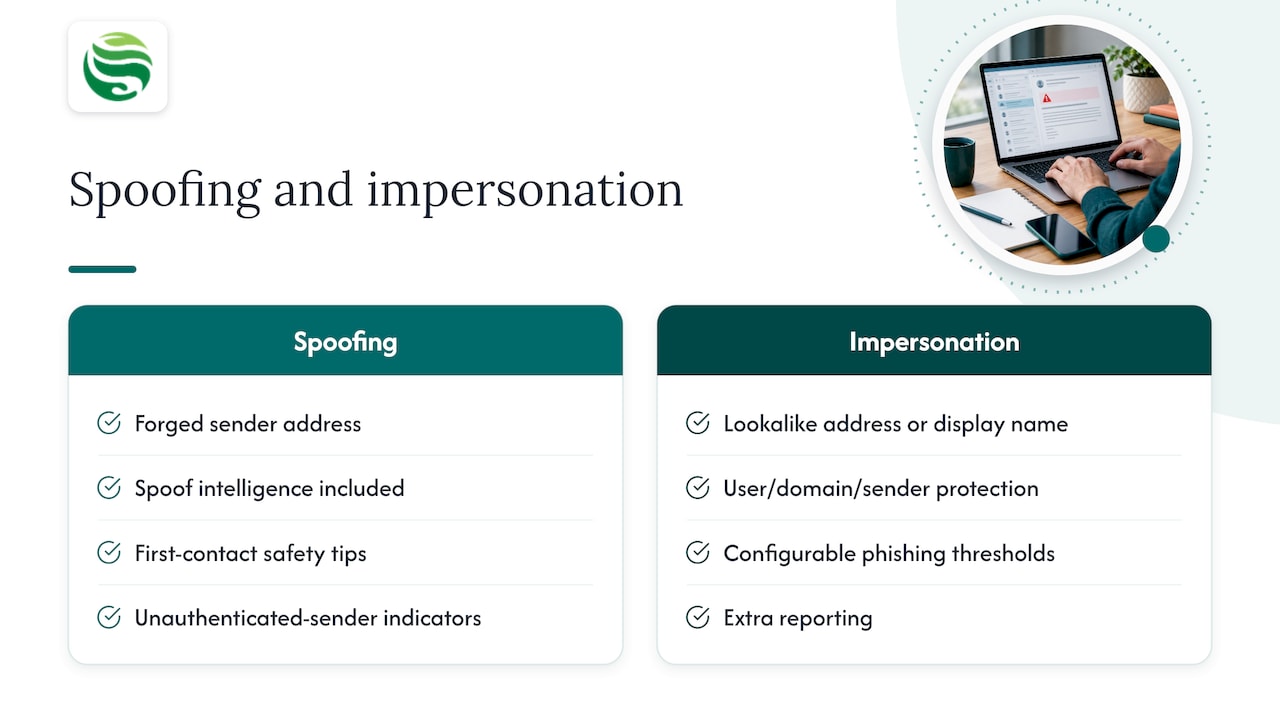
Spoofing is forging the sender address so a message appears to come from a domain that did not send it. Microsoft says the basic protection available to all cloud mailboxes includes spoof intelligence, first-contact safety tips and unauthenticated-sender indicators.
Impersonation is a lookalike: a different address or display name designed to resemble a real person or company. Defender for Office 365 adds user, domain and sender impersonation protection, configurable phishing thresholds and extra reporting. Microsoft also notes that impersonation protection is not enabled in the default anti-phishing policy and must be configured. Many tenants never do this step.
How to set up your policies
Microsoft’s guidance on how to configure anti-phishing policies comes down to a few decisions:
- Leave spoof intelligence enabled.
- Keep the default anti-phishing policy, which applies to all recipients.
- Use the Standard or Strict preset policies where you can, rather than building everything by hand. Custom policies can target selected users, groups or domains.
- Where your licence allows, name the people and domains to protect: finance staff, directors, your own domain and your key suppliers.
- Set phishing thresholds and actions, then review any trusted exceptions.
Keep the list of protected users short and accurate. Directors, finance and HR are the usual targets, because a convincing request from them carries the most weight. Reviewing current phishing scam trends is a useful way to decide which lures your staff should be briefed on.
SPF, DKIM and DMARC: protect your domain
Filtering protects what comes in. Authentication protects your name going out. The UK National Cyber Security Centre says organisations should protect every email domain, including those used with Microsoft 365, and protect email in transit with TLS.
The NCSC describes the three standards simply:
| Standard | What it does |
|---|---|
| SPF | Publishes the IP addresses allowed to send mail for your domain |
| DKIM | Cryptographically signs outgoing mail so it can be verified |
| DMARC | Tells receiving servers what to do with mail that fails, and sends you reports |
Microsoft’s deployment guidance says to configure SPF, DKIM and DMARC, in that order, for each custom domain, including parked domains and subdomains. The DMARC record should carry a quarantine or reject policy and a reporting address. For the onmicrosoft.com routing domain, the same guide says SPF and DKIM are already configured, but DMARC must be set up manually.
In practice, start DMARC in monitoring mode, read the reports to find every legitimate sender (marketing platforms, invoicing tools, your website forms), fix those, then move to quarantine and finally reject. Jumping straight to reject without that step is how a business ends up blocking its own invoices.
Domains you do not send from still need a record. Attackers like unprotected, unused domains because nobody is watching them.
Best practices that stop most account compromise
Filtering will never catch everything, so the aim is to make a successful phish harmless. Microsoft’s anti-phishing tuning guidance points to a short list of habits:
- Enable multi-factor authentication for all users. If a rollout must be phased, begin with administrators and executives. Our guide to Microsoft 365 MFA for UK admins covers emergency accounts and FIDO2 keys.
- Use the Standard or Strict preset policies. Microsoft recommends these as practical filtering baselines, with Strict applying more stringent settings.
- Make reporting easy. Microsoft recommends Outlook’s built-in report button, with reported messages sent to a designated mailbox, to Microsoft, or both.
- Review external forwarding. Use Secure Score and the forwarding reports. Silent forwarding rules are a common sign that a mailbox has been taken over.
- Back up the data. Email protection does not replace recovery. See our note on Microsoft 365 backup gaps.
- Train people. A short, regular briefing on invoice fraud and fake login pages does more than a long annual session.
Passwords still matter alongside MFA, and a copy-ready SME password policy aligned with NCSC guidance gives staff one clear standard to follow.
Monitoring and testing your policies over time
A policy set up in 2024 and never reviewed is a policy that has quietly drifted. Microsoft’s tuning guidance suggests a light but regular routine:
- Review Secure Score monthly.
- Use Threat Explorer and real-time detections to find false positives (good mail blocked) and false negatives (bad mail delivered).
- Periodically review the phishing, spoofing and impersonation reports.
- Use what you find to adjust settings, rather than changing them on instinct.
Also review your trusted senders and allow-lists. Exceptions added to fix one awkward supplier tend to stay for years, and each is a hole an attacker can use.
If a phishing email gets through
Someone will eventually click. What matters is how quickly you respond. Microsoft’s guidance gives the sequence:
- Block further messages from the same campaign.
- Deal with any compromised account: reset credentials, revoke sessions and check for forwarding rules.
- Where your licence includes it, use Defender threat intelligence to find other recipients.
- Report the message to Microsoft, inspect its headers and adjust your anti-phishing settings so the same pattern is caught next time.
Speed is the difference between one reset password and a fraudulent payment. If your team has no one who can do this out of hours, agree who will before you need them.
How Abersecure supports Microsoft 365 email security
Most Aberdeen and Aberdeenshire businesses we speak to have the licence but not the time to tune it. Our email security service and Microsoft 365 management sit within managed cyber security, built on our Security by Default approach, so protection is part of the support rather than an extra. If you want a view of where your tenant stands today, our cyber risk assessment is a sensible starting point. Pricing is not published, so contact us to discuss what suits your business.
FAQ
Is the built-in Microsoft 365 email protection enough for a small business?
It is a sound baseline against spam, malware and common phishing, and it applies automatically. It is less likely to be enough against targeted impersonation, because that protection needs a suitable licence and configuration. Check your plan, then review your policies.
Do I need Defender for Office 365?
If staff handle payments, sensitive data or supplier requests by email, the added impersonation protection, Safe Links and Safe Attachments are worth having. Business Premium includes Plan 1. Confirm what your own subscription contains before deciding.
Should I set up DMARC if I only send a little email?
Yes. The NCSC advises protecting every domain you own, because attackers can spoof a domain whatever its volume. Start in monitoring mode and tighten the policy once the reports show your genuine senders.
How often should I review my email security settings?
Microsoft suggests checking Secure Score monthly and reviewing phishing, spoofing and impersonation reports periodically. Revisit your policies whenever you change licence, add a domain or adopt a new sending service.